 Spokeninbox
Guide
Gmail auto-forward: all mail, selected senders and filters
Updated October 2026
Gmail can automatically forward new messages to another address. You can forward all new mail, or use a filter to forward only matching messages, such as mail from one sender. Both start with adding and confirming the address in Gmail on a computer (Google: Automatically forward Gmail messages).
Add and verify a forwarding address in Gmail settings on a computer. Then either turn on forwarding for all new mail, or leave that off and create a filter for the senders you want.
Before you start
- Only new messages are forwarded. Mail already in your inbox isn't sent (Google, Google: Create rules to filter your emails).
- Forwarding all mail covers every new message except spam (Google).
- On a work or school account, your organization may disable forwarding or restrict destinations. Ask your administrator what is allowed (Google Workspace admin help).
Step 1: Add the forwarding address
- On a computer, open Gmail and sign in to the account you want to forward from.
- At the top right, click Settings > See all settings.
- Click the Forwarding and POP/IMAP tab, or Forwarding if that's the tab you see.
- In the Forwarding section, click Add a forwarding address.
- Enter the address you want mail sent to.
- Click Next > Proceed > OK. Gmail sends a confirmation message to that address (Google).
Step 2: Confirm the address
How you confirm depends on where the mail is going.
- Another email account: open Gmail's confirmation message in that account and click the verification link (Google).
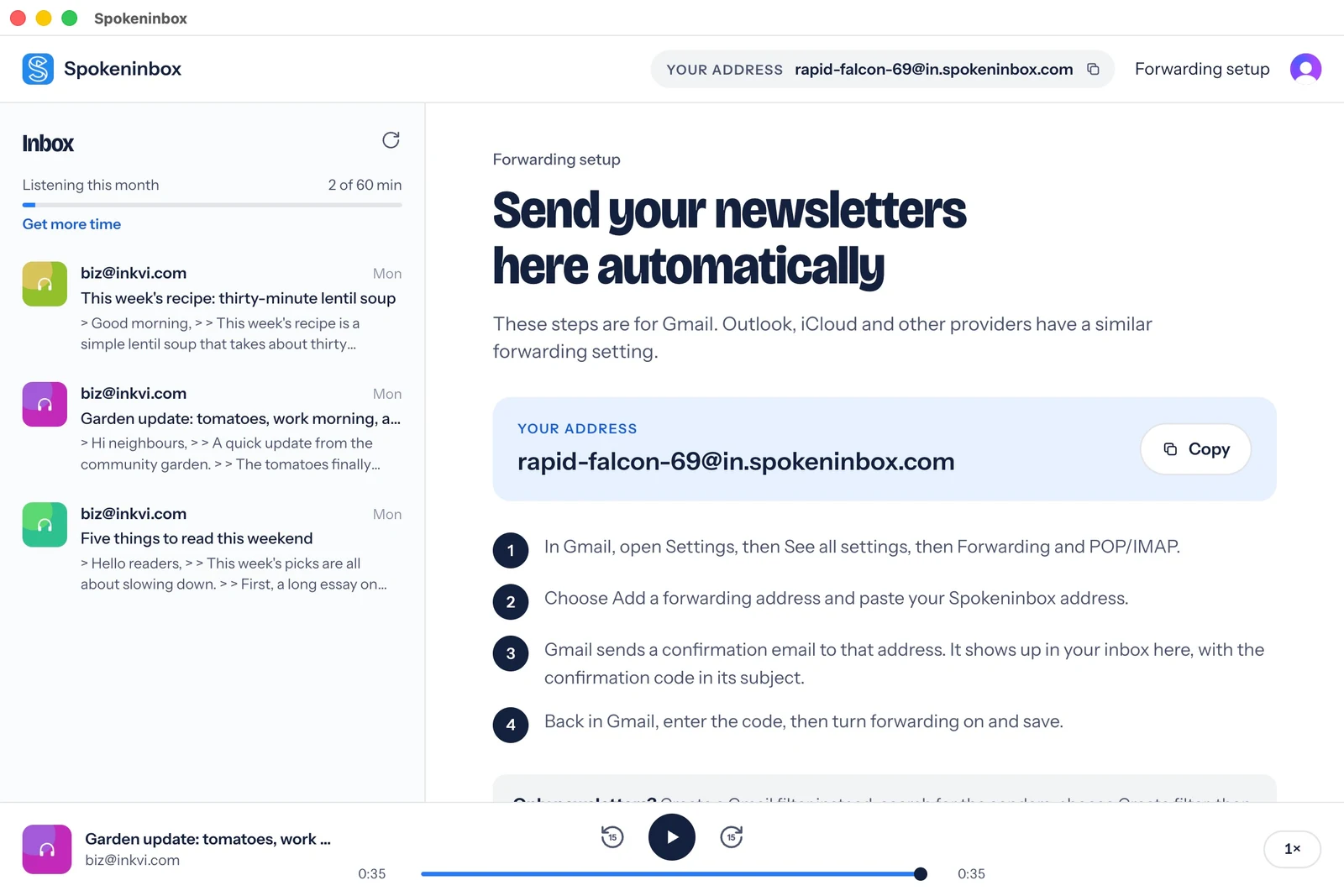
- A Spokeninbox address: open your Spokeninbox inbox and find Gmail's confirmation email. Its subject contains the confirmation code. Copy that code into Gmail's Forwarding settings and verify the address. The forwarding setup page shows your personal address and instructions, not the code.
Then return to the Gmail Settings page and refresh your browser (Google).
Step 3, option A: Forward all new mail
- In Settings > See all settings, open the Forwarding and POP/IMAP or Forwarding tab.
- In the Forwarding section, select Forward a copy of incoming mail to and pick your address.
- Choose what happens to Gmail's copy. Google recommends Keep Gmail's copy in the Inbox (Google). Your inbox stays the same, and you can change it later.
- Click Save Changes at the bottom of the page.
Step 3, option B: Forward only some senders with a filter
To forward selected messages, leave account-wide automatic forwarding off and create a filter instead. Keep the destination address verified (Google).
Example: forward only newsletters from news@example.com.
- In Gmail on a computer, click Show search options in the search box at the top.
- In the From field, enter news@example.com.
- To check the match, click Search and look at the results (Google). Then open search options again.
- At the bottom of the search options window, click Create filter.
- Select Forward it and choose your forwarding address.
- Click Create filter (Google).
You can also start from a message: check the box next to an email from that sender, click More > Filter messages like these, then continue to the filter options (Google).
Things to know about forwarding filters
- They act on new messages only. If Gmail offers to apply the filter to matching conversations you already have, those older messages still aren't forwarded. Forward any you need by hand (Google).
- A reply in a filtered conversation is forwarded only if the reply also matches the filter's criteria (Google).
Test it
Test with a new message that matches your setup and check that it reaches the destination. Choose a message you are comfortable sending there.
How to turn off Gmail forwarding
Forwarding all mail and forwarding filters are separate settings. Disabling all-mail forwarding does not remove forwarding filters, so turn off whichever you set up, or both.
Stop forwarding all mail
- In Gmail on a computer, click Settings > See all settings.
- Open the Forwarding and POP/IMAP or Forwarding tab.
- Click Disable forwarding, then Save Changes (Google).
Change or remove a forwarding filter
- Click Settings > See all settings > Filters and Blocked Addresses.
- Find the filter and click Edit or Delete.
- If you're editing, click Continue when done. Finish with Update filter or OK (Google).
Troubleshooting
You can't find the Forwarding tab. Use Gmail in a browser on a computer. If your Workspace administrator has disabled automatic forwarding, the option is unavailable in Gmail settings (Google Workspace).
The confirmation message didn't arrive. Check the address for typos and, for a regular email destination, check its spam folder. For Spokeninbox, look for the confirmation email and its subject-line code in your Spokeninbox inbox.
Forward it shows no address. Add and confirm an address first (Steps 1 and 2).
Older messages weren't forwarded. That's expected. Forwarding acts only on new mail.
A filter misses messages. Run the same search by itself and see what matches. Adjust the criteria, then edit the filter.
You see a forwarding notice you didn't set up. Google says to change your password immediately, then turn off forwarding in Settings (Google).
Listen to forwarded email with Spokeninbox
Forward a few newsletter senders to the personal address on your forwarding setup page, then open the web app and press Play to generate narration. See the newsletter listening guide, compare other ways to hear Gmail, or browse every way to have emails read aloud.
See and hear Spokeninbox
Play a 30-second English newsletter sample. No sign-in needed.
Listen: thirty-minute lentil soup
English voice sample, about 30 seconds. Download MP3.
Read the sample transcript
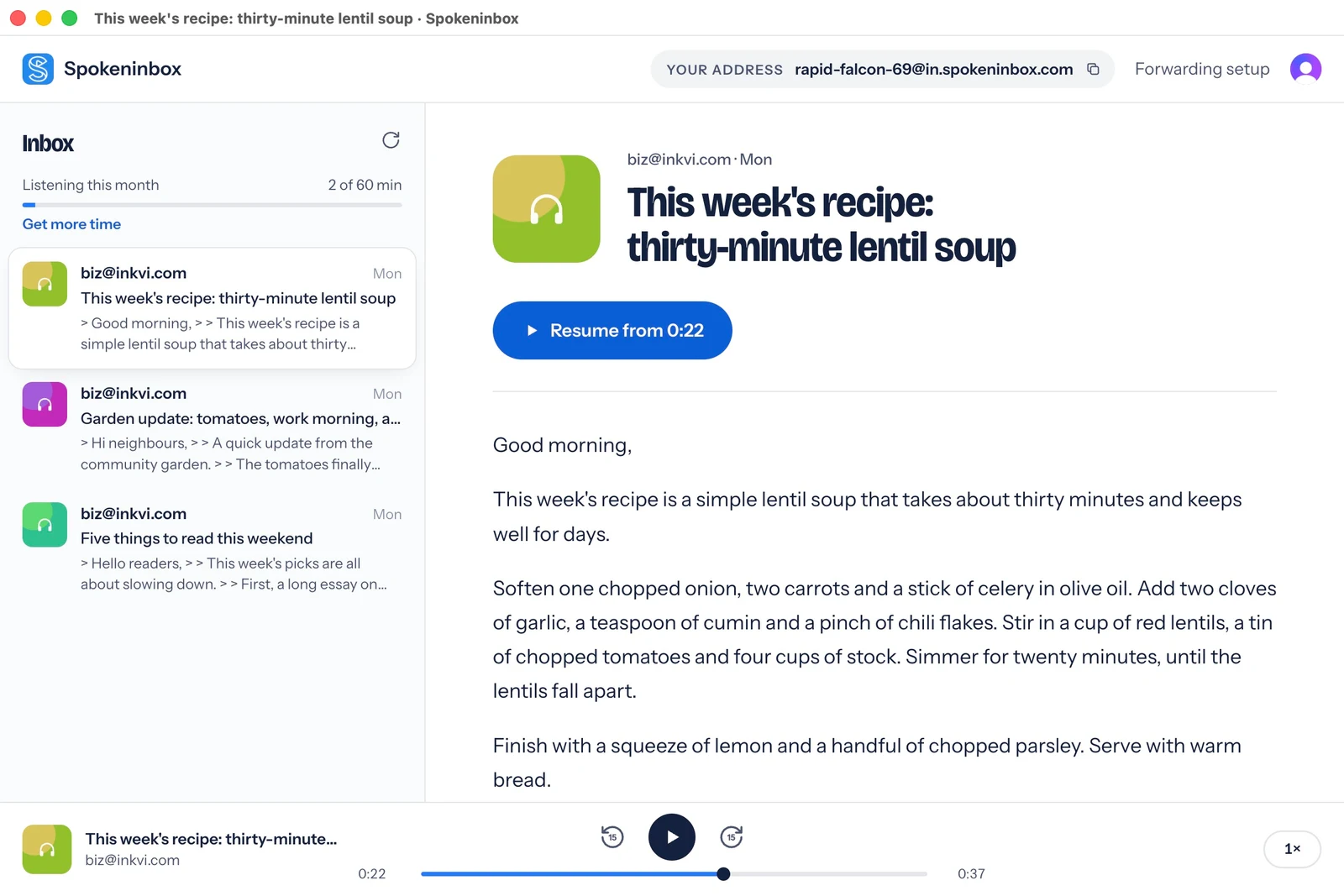
Good morning. This week's recipe is a simple lentil soup that takes about thirty minutes and keeps well for days. Soften one chopped onion, two carrots and a stick of celery in olive oil. Add two cloves of garlic, a teaspoon of cumin and a pinch of chili flakes. Stir in a cup of red lentils, a tin of chopped tomatoes and four cups of stock. Simmer for twenty minutes, until the lentils fall apart. Finish with a squeeze of lemon and a handful of chopped parsley. Serve with warm bread.
Open Spokeninbox in your browser and forward an email to start listening. No download needed. You get 1 hour free each month; paid plans start at $9.99 a month.
Start listening in your browser →Questions
Does Gmail forward emails I already have?
No. Automatic forwarding and forwarding filters apply to new messages. Forward older ones by hand (Google).
Can I set this up in the Gmail app on my phone?
Google's forwarding steps use Gmail on a computer (Google). Once set up there, forwarding works for the account however you read it.
Can I forward to more than one address?
Yes, with filters: create one filter per forwarding address (Google).
Why does Gmail say I'm forwarding my email?
It's a reminder shown for the first week after you turn on forwarding or create a forwarding filter (Google).