 Spokeninbox
Guide
Automatically forward Outlook email: settings, rules and fixes
Updated October 2026
Outlook can forward incoming mail to another address in two ways. The forwarding setting sends all new mail. A rule can forward all mail or only messages that meet a condition, such as a specific sender. Where you find each depends on your version of Outlook.
Use the Forwarding setting to send all new mail, or a rule with a sender condition to send only some. For selective forwarding, turn off all-mail forwarding first. Work and school accounts may block external forwarding.
Where to find forwarding
If you're not sure which version you have, see Microsoft's What version of Outlook do I have?
| Outlook version | Forward all mail | Forward only some mail |
|---|---|---|
| New Outlook for Windows | Settings > Mail > Forwarding | Settings > Mail > Rules > Add rule |
| Outlook on the web | Settings > Mail > Forwarding | Settings > Mail > Rules > Add rule |
| Outlook.com | Settings > Mail > Forwarding and IMAP | Settings > Mail > Rules > Add rule |
| Classic Outlook for Windows | Home > Rules > Manage Rules & Alerts > New Rule > Apply rule on messages I receive | Same path, with a sender condition |
Sources: Microsoft: Turn automatic forwarding on or off and Microsoft: Use rules to automatically forward messages. This guide doesn't cover Outlook for Mac; Microsoft explains rules in Outlook for Mac separately.
Forward all mail: new Outlook, Outlook on the web and Outlook.com
- Select Settings at the top of the window.
- Select Mail > Forwarding. In Outlook.com, it's Mail > Forwarding and IMAP.
- If you're asked to Sign in, complete that first. The forwarding options appear afterwards (Microsoft).
- Turn on Enable forwarding and enter the address to forward to.
- If you see Keep a copy of forwarded messages, select it. Your mailbox then stays as it is, which is a sensible default.
- Select Save.
Forward only some senders with a rule: new Outlook, Outlook on the web and Outlook.com
First turn off any account-wide forwarding from the previous section. A selective rule does not narrow an all-mail forwarding setting.
- Select Settings > Mail > Rules, then Add rule (Microsoft).
- Enter a name for the rule.
- Add a condition:
- For one sender, choose the condition about who the message is from and enter that sender's address. Condition names can vary, so pick the one that matches the sender.
- For all mail, choose Apply to all messages.
- Add an action: choose Forward to and enter the destination address.
- Optional: choose Stop processing more rules if other rules shouldn't act on these messages (Microsoft).
- Select Save.
Classic Outlook for Windows
- On the Home tab, select Rules > Manage Rules & Alerts. Depending on your ribbon, Rules may be under More commands or Move (Microsoft, Microsoft).
- If you have more than one account, set Apply changes to this folder to the account you want to forward from (Microsoft).
- Select New Rule, then under Start from a blank rule select Apply rule on messages I receive > Next.
- Choose what the rule applies to:
- Only some senders: check the condition for messages from specific people, select the underlined link in the rule description, and choose the sender. Select Next.
- All mail: leave every condition unchecked and select Next. Outlook asks whether the rule should apply to every message you receive. Select Yes only if that's what you want (Microsoft).
- Under actions, check forward it to people or public group. Select the underlined recipient link, enter the destination address, select OK, then Next (Microsoft).
- Add exceptions if you need any, then select Next.
- Name the rule and select Finish. If Outlook then shows Apply and OK, select them too.
For unattended forwarding, include a test with Outlook closed. A successful test with the desktop app open doesn't prove the rule will run while you are away.
Forward, redirect or forward as attachment?
- Forward: the message arrives as forwarded from you, and replies come back to you (Microsoft).
- Redirect: the message appears to come from the original sender, and replies go to the original sender (Microsoft).
- Forward as attachment: the original message is attached to a new message from you.
For Spokeninbox, choose plain Forward to, not Forward as attachment: attachments are not narrated.
Work and school accounts
Your organization can block automatic forwarding to external addresses. A rule cannot override that policy, and blocked messages can produce a non-delivery report. If a work account will not forward, ask your IT administrator what is permitted (Microsoft: Control automatic external forwarding).
Test your setup
Test with a new message from a sender your rule covers. Check the destination, including Junk or Spam (Microsoft). If you selected only some senders, also test a non-matching sender. Forward older messages by hand; these settings act on incoming mail.
Troubleshooting
The new Outlook steps don't match your screen. You may be using classic Outlook. Microsoft suggests following the classic steps instead (Microsoft).
Forwarded messages don't show up. Check Junk or Spam at the destination, confirm the rule is turned on and its condition matches the sender, and check the work account policy above.
A rule with several addresses doesn't work. Your account may limit how many addresses a rule can send to, and the rule fails if you add more (Microsoft). Remove some and test again.
Forwarding stopped after your mailbox filled up. Microsoft notes that forwarding rules may not work while a mailbox is over its limit (Microsoft). Free up space, then test again.
For other rule problems, see Microsoft's Edit or fix a broken rule in Outlook.
How to turn off Outlook forwarding
- New Outlook and Outlook on the web: Settings > Mail > Forwarding, use the Disable forwarding switch, then Save (Microsoft).
- Outlook.com: Settings > Mail > Forwarding and IMAP, select Disable forwarding, then Save (Microsoft).
- Rules in new Outlook, Outlook on the web or Outlook.com: Settings > Mail > Rules, then turn off or delete the forwarding rule.
- Classic Outlook: open Manage Rules & Alerts, then clear the check box next to the rule or delete it.
If you used both the forwarding setting and a rule, turn off both.
Listen to forwarded Outlook email
Get your personal address from Spokeninbox's forwarding setup, forward an email with plain Forward to, then press Play in the web app to generate narration. No Outlook add-in is needed. For other options, see Outlook Read Aloud or every way to have emails read aloud.
See and hear Spokeninbox
Play a 30-second English newsletter sample. No sign-in needed.
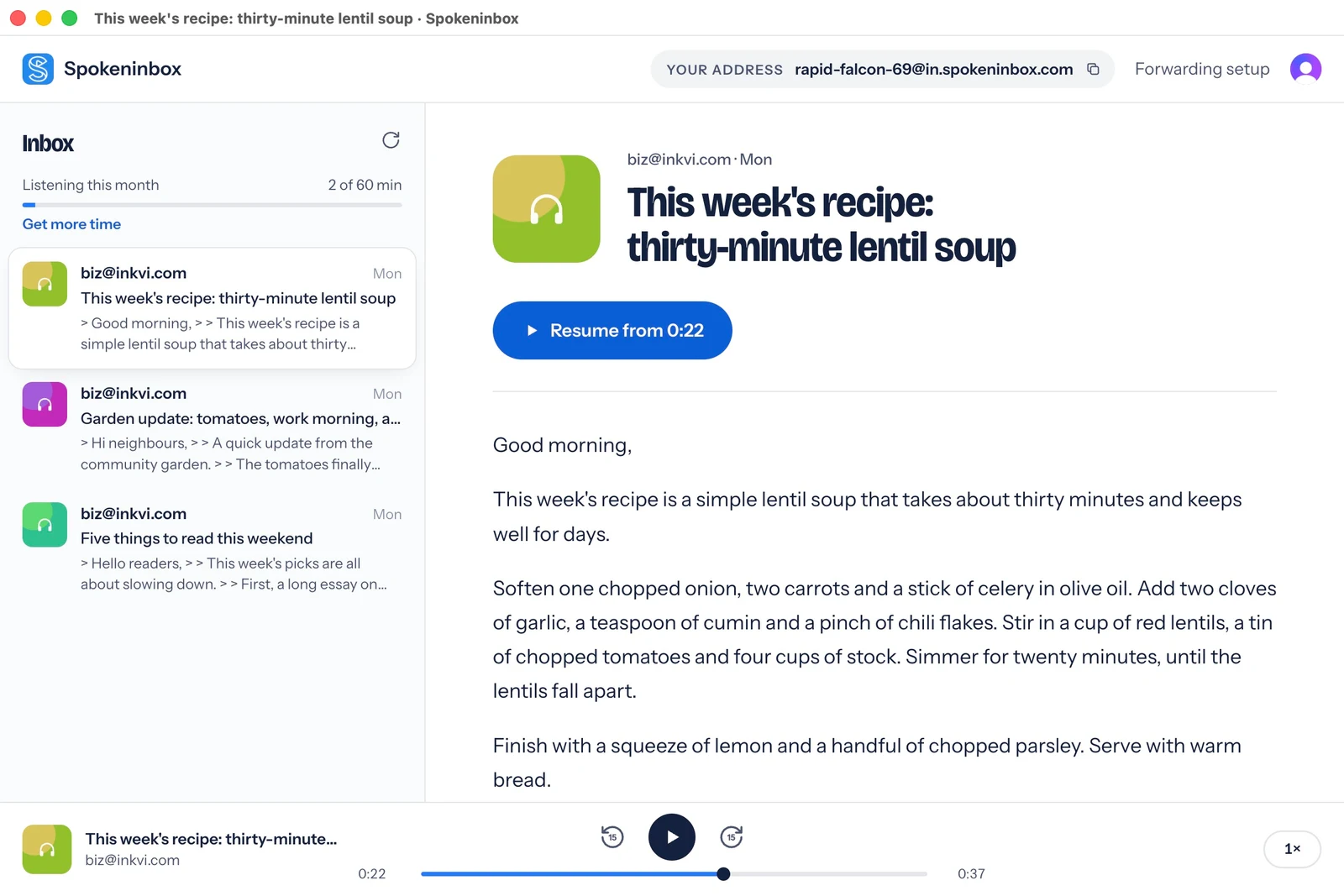
Listen: thirty-minute lentil soup
English voice sample, about 30 seconds. Download MP3.
Read the sample transcript
Good morning. This week's recipe is a simple lentil soup that takes about thirty minutes and keeps well for days. Soften one chopped onion, two carrots and a stick of celery in olive oil. Add two cloves of garlic, a teaspoon of cumin and a pinch of chili flakes. Stir in a cup of red lentils, a tin of chopped tomatoes and four cups of stock. Simmer for twenty minutes, until the lentils fall apart. Finish with a squeeze of lemon and a handful of chopped parsley. Serve with warm bread.
Open Spokeninbox in your browser and forward an email to start listening. No download needed. You get 1 hour free each month; paid plans start at $9.99 a month.
Start listening in your browser →Questions
Will I keep a copy?
New Outlook and Outlook on the web offer Keep a copy of forwarded messages (Microsoft). With rules, copies stay unless you also add an action that deletes them (Microsoft).
Does a sender rule limit my all-mail forwarding?
No. All-mail forwarding keeps sending everything, so turn it off if you only want some senders forwarded.
Where did Play My Emails go?
It has been retired. Our Outlook Read Aloud guide covers what to use now.