 Spokeninbox
Guide
Select to Speak on Android: setup, email and turning it off
Updated October 2026
Select to Speak is an Android accessibility feature that reads aloud what you tap or select on the screen.
Turn on the Select to Speak shortcut in your phone's Accessibility settings, start it with that shortcut, then tap or drag over the text you want to hear. Some steps need Android 11 or later, and setting names vary by phone maker.
Before you start
Google notes that some steps work only on Android 11 and up (Google: Use Select to Speak). Phone makers also arrange Settings in their own way, so names and locations on your phone may differ slightly.
How to turn on Select to Speak
- Open your phone's Settings app.
- Tap Accessibility, then tap Select to Speak.
- Turn on Select to Speak shortcut.
- Optional: tap Select to Speak shortcut to choose how you start it, such as a gesture or the Accessibility button. Google explains the choices in its accessibility shortcuts help.
If you don't see Select to Speak, Google says to install the latest Android Accessibility Suite from Google Play and try again (Google).
How to use Select to Speak
- Start Select to Speak with your shortcut. Google lists a two-finger swipe up (three fingers if TalkBack is on) or a tap on the Accessibility button, depending on the shortcut you set (Google).
- Tap an item to hear it. To hear several items, drag your finger across them.
- To hear everything on the screen, tap Play.
- While the player is open, use its buttons to pause or play, skip forward or back, and speed up or slow down.
Read selected text without the shortcut
In web pages and apps that support text selection, select the text, then tap More > Read aloud in the pop-up menu. Google says you don't need to turn on Select to Speak for this, and that it works only on text that can be read, such as text on a web page (Google). If your phone doesn't show Read aloud, use the shortcut instead.
Keep listening while you scroll or switch apps
- Open Settings > Accessibility > Select to Speak.
- Tap Settings.
- At the top, turn on Read in background.
Google documents this setting for scrolling and switching apps. It does not document playback with the screen locked or saving your place in an email (Google).
Use Select to Speak on an email
- Open the message in your email app and scroll so the start of the body is on screen.
- Start Select to Speak with your shortcut.
- Drag your finger over the paragraphs you want to hear. Dragging over only the body keeps it to the message text. Tapping Play reads everything on screen, which can include buttons and menus.
- When it finishes, scroll down and repeat for the next part.
To hear a single paragraph, you can also select it and tap More > Read aloud, if your email app offers it.
Whether a message can be read depends on how the app shows it. Text that appears as normal, selectable text can usually be read. Text inside an image, such as a newsletter built mostly from graphics, may be skipped or only partly read. Google also notes that Select to Speak might not work in every mobile browser (Google).
Select to Speak, TalkBack and Reading mode
- Select to Speak reads the items or area you choose.
- TalkBack provides spoken navigation throughout your device and uses its own gestures (Google: Get started with TalkBack).
- Reading mode is a separate app for long-form text. Google explicitly excludes email from its supported content (Google: Use Reading mode), so use Select to Speak for email instead.
Troubleshooting
Select to Speak isn't in Accessibility. Update Android Accessibility Suite from Google Play, then check again (Google). Some manufacturers group accessibility settings differently. If your Settings app has a search field, search for Select to Speak.
The shortcut does nothing. Check that Select to Speak shortcut is on, then tap it to see which shortcut is assigned. If TalkBack is on, the swipe needs three fingers instead of two (Google).
Nothing is read, or only part. The content may be an image rather than text. Try selecting a smaller area, or open the same content somewhere it appears as normal text.
It's silent or too quiet. Adjust the volume while it is speaking, and check whether sound is going to connected headphones or a speaker.
It stops when you leave the app. Turn on Read in background.
The voice is too fast or slow. Use the speed buttons in the player.
How to turn off Select to Speak
- To stop the current reading, pause it in the player.
- To stop the shortcut from starting it, go to Settings > Accessibility > Select to Speak and turn off Select to Speak shortcut.
- To keep Select to Speak but stop background reading, turn off Read in background on its Settings screen.
Hear long emails without reading the screen
For long emails and newsletters, forward the messages you choose to your personal Spokeninbox address, shown on the forwarding setup page. Then open the web app in your Android browser and press Play to generate narration. Text inside images may not be narrated. For a wider comparison, see how to listen to newsletters.
See and hear Spokeninbox
Play a 30-second English newsletter sample. No sign-in needed.
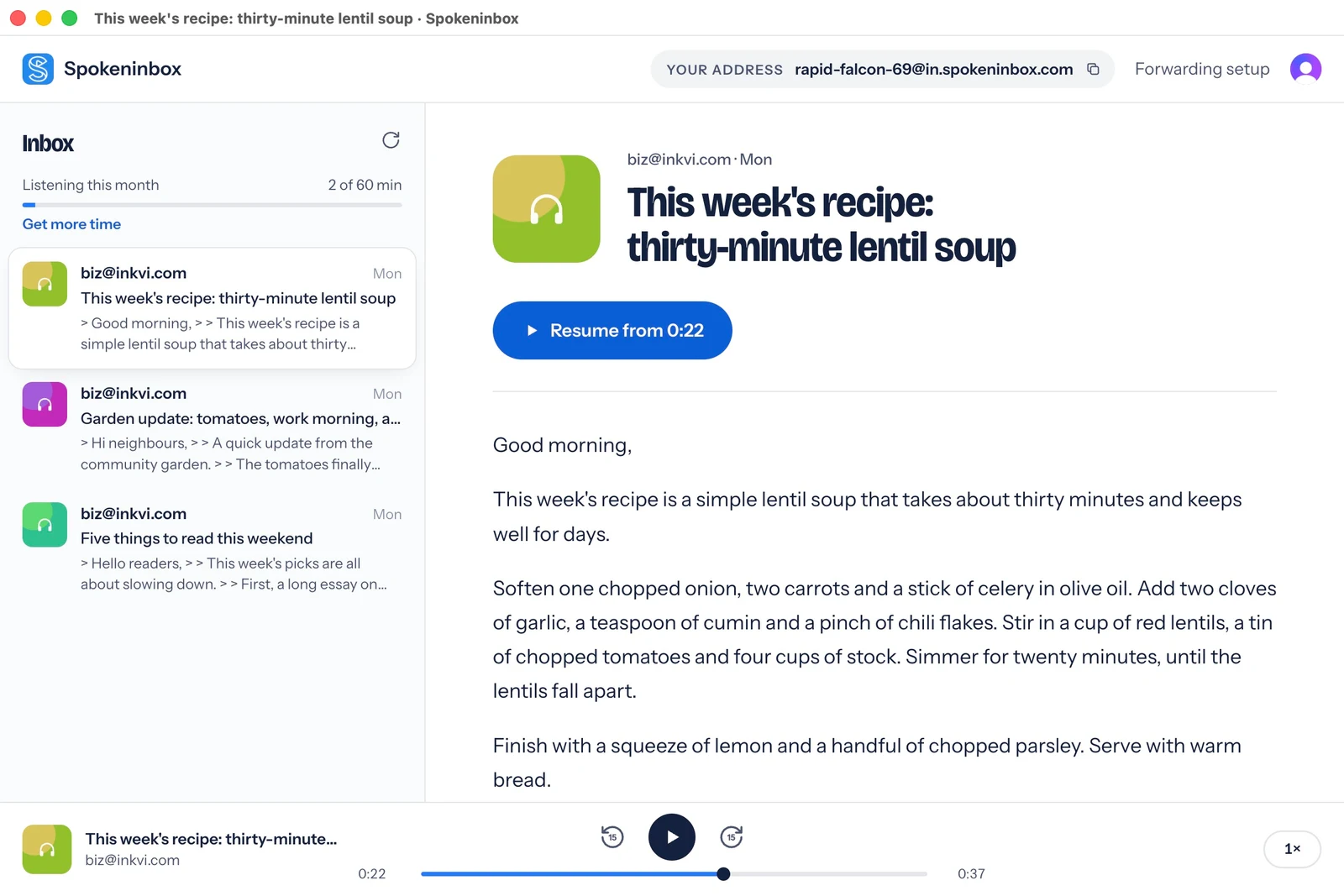
Listen: thirty-minute lentil soup
English voice sample, about 30 seconds. Download MP3.
Read the sample transcript
Good morning. This week's recipe is a simple lentil soup that takes about thirty minutes and keeps well for days. Soften one chopped onion, two carrots and a stick of celery in olive oil. Add two cloves of garlic, a teaspoon of cumin and a pinch of chili flakes. Stir in a cup of red lentils, a tin of chopped tomatoes and four cups of stock. Simmer for twenty minutes, until the lentils fall apart. Finish with a squeeze of lemon and a handful of chopped parsley. Serve with warm bread.
Open Spokeninbox in your browser and forward an email to start listening. No download needed. You get 1 hour free each month; paid plans start at $9.99 a month.
Start listening in your browser →Questions
Can Select to Speak read my whole inbox?
No. It reads the screen or a selected area. To hear another email, open that message and start reading again.
Does Select to Speak work in Gmail?
It can read message text that the Gmail app shows as readable text. Content inside images may not be read. For other options, see how to have Gmail read emails aloud.
Can I use Android Reading mode for email instead?
No. Google's Reading mode help excludes email from supported content (Google).
What's the iPhone equivalent?
Speak Screen. For every device and email app, see how to have your emails read aloud.