 Spokeninbox
Newsletter guide
How to Listen to Substack Posts and Newsletters
Updated October 2026
To listen to a Substack post, open it in the Substack app and tap the play icon at the top right. Text to speech is available on most, but not all, publications, and only for posts written in English. If a post has no audio, you can forward the newsletter email to a separate email reader such as Spokeninbox.
Play a post in the Substack app
These steps are for Substack's own app, based on Substack's help article How do I listen to a Substack post.
- Open the Substack app and go to the post.
- Tap the play icon at the top right.
- Audio starts in the player.
Playback continues in the background while you use other apps, unless you pause it or fully close the Substack app.
Some writers also publish a recorded voiceover. This is separate from automatic text to speech.
Why a post may have no audio
According to Substack, text to speech is on most publications but not all of them. Some publications and older posts don't have audio, and you may see a message saying so. The feature is also limited to posts written in English.
Text to speech is offered in the Substack app, so if you opened the post in a browser or from your inbox, open it in the app first. If the post still has no audio, the options below work from the newsletter email instead.
Forward one newsletter email to Spokeninbox
Spokeninbox reads the newsletter emails you forward to it. It does not connect to your Substack account:
- Sign in at app.spokeninbox.com.
- Copy your own address from forwarding setup. It ends in
@in.spokeninbox.com. - Forward one Substack email that contains the full post text.
- Open it in Spokeninbox and press Play.
Pressing Play creates a clean transcript and audio from the email body. If the email contains only a teaser or a link, Spokeninbox reads only that excerpt. It does not fetch the full linked article.
Send selected senders automatically
Once one email works, set up a forwarding rule for the newsletters you want to hear, filtered by sender. Follow the Gmail auto-forward guide or the Outlook auto-forward guide. For newsletters from other platforms, see how to listen to newsletters.
See and hear Spokeninbox
Play a 30-second English newsletter sample. No sign-in needed.
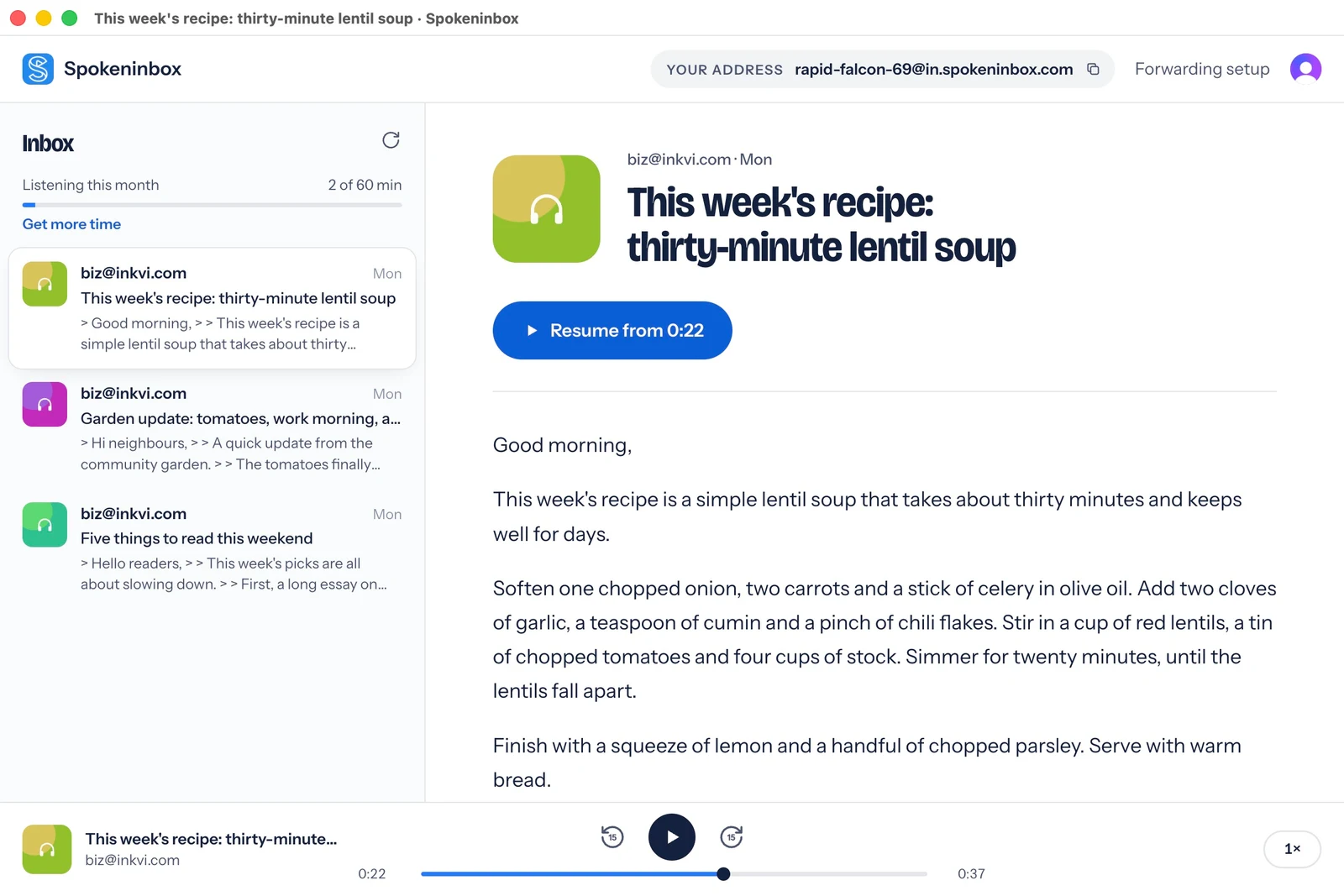
Listen: thirty-minute lentil soup
English voice sample, about 30 seconds. Download MP3.
Read the sample transcript
Good morning. This week's recipe is a simple lentil soup that takes about thirty minutes and keeps well for days. Soften one chopped onion, two carrots and a stick of celery in olive oil. Add two cloves of garlic, a teaspoon of cumin and a pinch of chili flakes. Stir in a cup of red lentils, a tin of chopped tomatoes and four cups of stock. Simmer for twenty minutes, until the lentils fall apart. Finish with a squeeze of lemon and a handful of chopped parsley. Serve with warm bread.
Open Spokeninbox in your browser and forward an email to start listening. No download needed. You get 1 hour free each month; paid plans start at $9.99 a month.
Start listening in your browser →Questions
Can Substack read posts that aren't in English?
Substack's help article says its text to speech is for posts written in English. For other languages, check whether the writer added a recorded voiceover, or check whether your device's built-in reader, such as Speak Screen on iPhone or Select to Speak on Android, supports that language.
Can I listen to paid Substack posts with Spokeninbox?
Only the text already in your email. If your paid subscription delivers the full post to your inbox, forward that email. If the email shows only a preview, Spokeninbox reads only the preview. It doesn't access the article behind the paywall.
Does Spokeninbox sync with my Substack account?
No. Spokeninbox works with emails you forward to your private address. To receive selected newsletters automatically, set up a sender rule in Gmail or Outlook.