 Spokeninbox
Mac guide
How to Make Your Mac Read Text and Email Aloud
Updated October 2026
To have your Mac read text aloud, open System Settings > Accessibility > Read & Speak and turn on Speak selection. Then select some text and press the default shortcut, Option-Esc. Press Option-Esc again to stop. This is built into macOS and costs nothing extra.
Turn on Speak selection and learn the shortcut
These steps are for macOS itself, based on Apple's guide to having your Mac speak text that's on the screen. Settings labels may vary between macOS versions. If you can't find them, search System Settings for Speak selection.
- Choose Apple menu > System Settings.
- Click Accessibility, then Read & Speak.
- Turn on Speak selection.
- Select text in an app and press Option-Esc, the default shortcut.
If no text is selected, your Mac reads the available text items in the current window. If there's nothing it can read, it makes a sound instead. Press the shortcut again to stop speaking.
Click the Info button next to Speak selection to change the keyboard shortcut, adjust highlighting, and turn on Show controller. The controller lets you change the speaking rate, move forward or back by sentence, and pause, resume, or stop.
Read an open email or web page aloud
Speak selection reads text that is readable and selectable on screen. To hear a message in Apple Mail, Outlook, or Gmail in a browser:
- Open the email so the message body is showing.
- Drag to select the paragraphs you want to hear.
- Press Option-Esc. Use the controller if you want to slow down or skip a sentence.
If you can't select the words, for example because they are part of an image, Speak selection may not read them. Many apps also offer Edit > Speech > Start Speaking, with Stop Speaking in the same menu, but not every app includes it.
For steps specific to each email service, see how to read Gmail aloud and how to read Outlook emails aloud, which covers Outlook for Mac.
If nothing happens
Work through these checks:
- Test a selected paragraph. Select a sentence on a simple web page and press the shortcut. If that works, the problem is likely the text in the original app rather than the setting.
- Check the configured shortcut. Click the Info button next to Speak selection and confirm which keys are set. If the shortcut was changed, Option-Esc won't start speech.
- Use the controller. Turn on Show controller so you have on-screen buttons to start, pause, and stop.
- Check your volume. Make sure sound isn't muted.
Listen to emails later with Spokeninbox
To listen away from your Mac, forward newsletters to Spokeninbox and play them on your phone:
- Sign in at app.spokeninbox.com.
- Copy your own address from forwarding setup. It ends in
@in.spokeninbox.com. - Forward one email that contains the actual newsletter text.
- Press Play.
Spokeninbox extracts the email body into a clean transcript and creates audio when you press Play. To send selected senders automatically, follow the Gmail auto-forward guide or the Outlook auto-forward guide. It saves your place in each email.
See and hear Spokeninbox
Play a 30-second English newsletter sample. No sign-in needed.
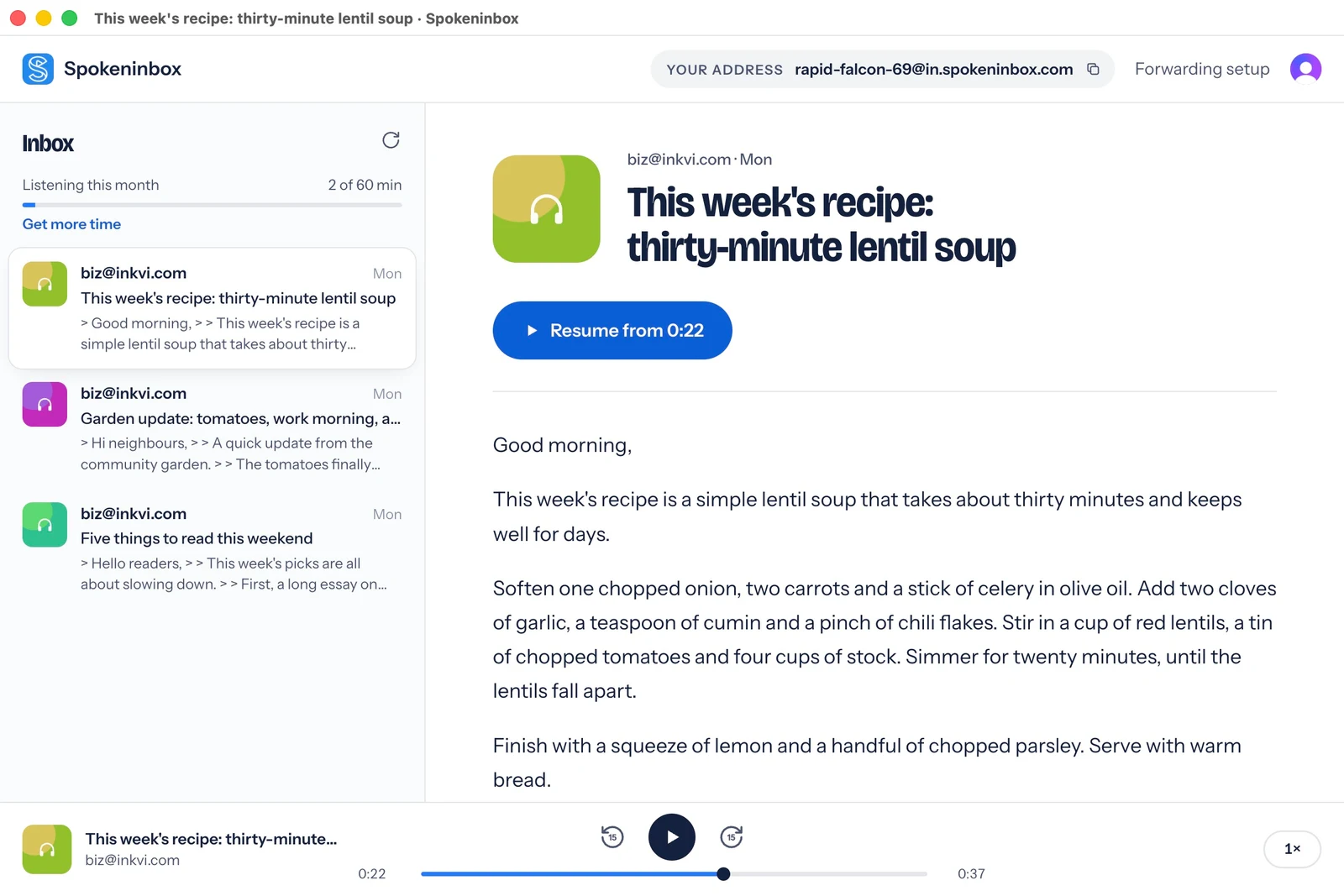
Listen: thirty-minute lentil soup
English voice sample, about 30 seconds. Download MP3.
Read the sample transcript
Good morning. This week's recipe is a simple lentil soup that takes about thirty minutes and keeps well for days. Soften one chopped onion, two carrots and a stick of celery in olive oil. Add two cloves of garlic, a teaspoon of cumin and a pinch of chili flakes. Stir in a cup of red lentils, a tin of chopped tomatoes and four cups of stock. Simmer for twenty minutes, until the lentils fall apart. Finish with a squeeze of lemon and a handful of chopped parsley. Serve with warm bread.
Open Spokeninbox in your browser and forward an email to start listening. No download needed. You get 1 hour free each month; paid plans start at $9.99 a month.
Start listening in your browser →Questions
Is read aloud on Mac free?
Yes. Speak selection is built into macOS, so there's nothing to buy or download.
How do I stop my Mac from reading aloud?
Press the shortcut again, which is Option-Esc by default. You can also use the stop button on the controller, or choose Edit > Speech > Stop Speaking in apps that have that menu.
Can Spokeninbox read PDFs or books?
No. Spokeninbox reads emails you forward to your private address. It doesn't import PDFs, EPUBs, books, or web links. For a PDF with selectable text on your Mac, select a paragraph and use Speak selection.