 Spokeninbox
PDFs
Turn a PDF into audio
Reports, guides and documents · Updated October 2026
The short answer. In Spokeninbox, open Add, choose PDF file, pick the pages and check the text. Save it, then press Play. It works with PDFs that have selectable text, up to 5 MB and 50 pages at a time, and the first 60 minutes each month are free. Scanned PDFs don't work.
How to turn a PDF into audio
PDFs go into the same inbox as your newsletters, so you can listen later and pick up where you stopped.
1. Open Add and choose PDF file
Sign in at app.spokeninbox.com, choose Add at the top, then PDF file, and pick a PDF smaller than 5 MB.
2. Choose the pages and the language
Leave Pages to read blank for a short PDF, or type a range like 1-3,5. You can take up to 50 pages at a time. Spokeninbox doesn't guess a PDF's language, so choose English, Spanish or Russian under Reading language. Then press Preview PDF.
3. Check the text
You see the text pulled from the PDF before anything is saved. Page numbers, running headers and side notes often come through. Delete them, because only the text in the box is read aloud. You can also change the title.
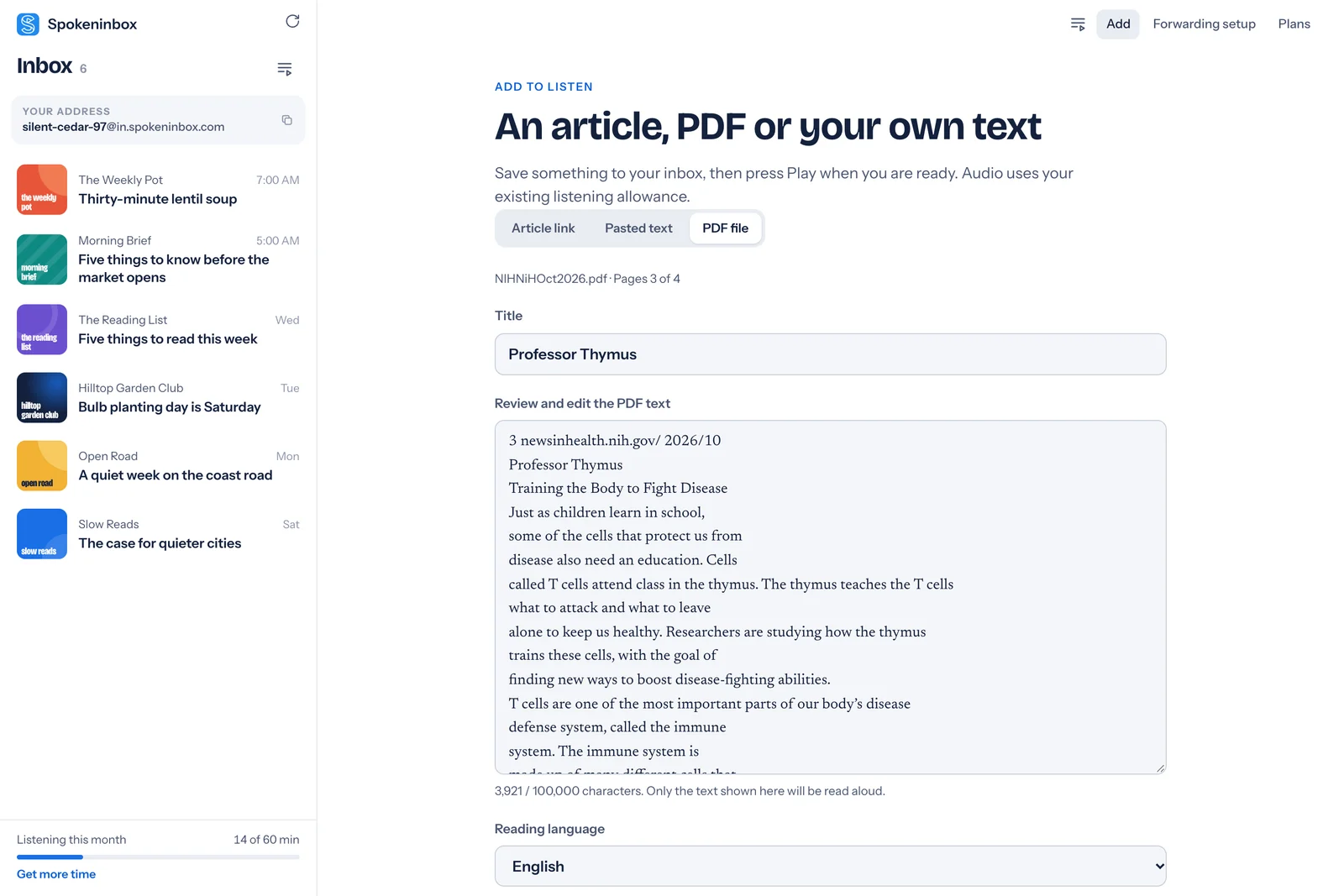
4. Save and press Play
Choose Save to inbox. The PDF opens like any email. Press Play when you're ready. The audio is made at that moment and counts toward your monthly minutes. Saving costs nothing.
Which PDFs work
- PDFs with selectable text. If you can select and copy words in your PDF viewer, Spokeninbox can read them. Reports, guides, forms and most PDFs exported from Word or Google Docs qualify.
- Not scanned PDFs. A scan is a picture of a page. Spokeninbox doesn't read text in images. Run the scan through a text-recognition tool first and paste the result.
- Not password-protected PDFs. Save an unlocked copy first.
- Columns in reading order. Spokeninbox reads two- and three-column pages top to bottom, one column at a time, and rejoins words split at the end of a line. Busy layouts can still mix in captions, side notes or chart labels, so check the text.
- Size limits. Up to 5 MB and 500 pages per file, 50 pages per import, and 100,000 characters per item. Import a long document in parts, like
1-50and then51-100. - Text only. Images, charts and tables aren't described.
- Your file isn't kept. Spokeninbox stores the text you save, not the PDF.
PDF import is in the web app and the Mac and Windows apps. In the Mac App Store version, add PDFs from the web app in your browser. The iPhone app can't add PDFs yet, so on a phone, add them in the web app in your browser.
Listen to a long PDF in parts
Import a long report in sections, then open each part and choose Add to queue. With Autoplay the next item turned on, the next part starts when one ends. Your place in each part is saved on the device you use.
Other ways to hear a PDF
- Adobe Acrobat Reader on Windows and Mac has Read Out Loud in the View menu.
- Microsoft Edge opens PDFs and has a Read aloud button in its PDF toolbar.
- Mac. Speak selection reads text you select in Preview.
- iPhone and iPad. Speak Screen reads a PDF open in Files or Books.
These read the file while it's open in front of you. Spokeninbox keeps the text in your inbox, so you can listen later, stop and pick up again, and play several parts in a row. For scanned PDFs and ebooks, a general reader like ElevenReader or Speechify can recognise text in images.
Hear an imported PDF
The start of an article from a public-domain NIH newsletter, imported as a PDF and read by Spokeninbox. No sign-in needed.
Listen: Professor Thymus, NIH News in Health
English voice, about 75 seconds. Imported from page 3 of the printable October 2026 issue on October 29, 2026. In the review step we deleted the page header and a sidebar link. Download MP3.
Read the sample transcript
Professor Thymus.
Training the Body to Fight Disease.
Just as children learn in school, some of the cells that protect us from disease also need an education. Cells called T cells attend class in the thymus. The thymus teaches the T cells what to attack and what to leave alone to keep us healthy. Researchers are studying how the thymus trains these cells, with the goal of finding new ways to boost disease-fighting abilities. T cells are one of the most important parts of our body's disease defense system, called the immune system. The immune system is made up of many different cells that defend us from threats like bacteria and viruses. The thymus is the reason for the "T" in T cell. After they are born, immature T cells travel to the thymus. Once there, they mature and specialize. They also learn how to recognize friend from foe. Afterward, the thymus tells the mature T cells where in the body to go. "Those cells come into the thymus as kind of a blank slate, much like children come to school," explains Dr. Kristin Hogquist, an expert on the immune system at the University of Minnesota. "And then the thymus is where they get all of the sophisticated instructions about how to function."
Open Spokeninbox in your browser. No download needed. You get 1 hour free each month; paid plans start at $9.99 a month.
Add a PDF in your browser →Questions
Can I listen to a PDF?
Yes. In Spokeninbox, choose Add, then PDF file, pick the pages, check the text and save it. Press Play to hear it. It works with PDFs that have selectable text, up to 5 MB.
Does it work with scanned PDFs?
No. Spokeninbox reads the text stored in the PDF and doesn't recognise text in images. If you can't select words in your PDF viewer, there is nothing for it to read. Use a text-recognition tool and paste the result instead.
How many pages can I convert?
Up to 50 pages at a time, from a PDF of up to 500 pages and 5 MB. Each item holds up to 100,000 characters. Import longer documents in parts.
Will it read two-column PDFs in the right order?
Usually. Spokeninbox puts columns in reading order and rejoins words split at the end of a line. Busy layouts can still mix in captions, side notes or chart labels, so check the text in the review step before saving.
Do you keep my PDF?
No. Spokeninbox keeps the text you save, not the file.
Is it free?
Saving PDFs is free. Listening uses your monthly minutes: 60 free minutes a month, and paid plans from $9.99 a month.
Still stuck? The support page has more help.